Showing posts with label Secret Tricks. Show all posts

Play HD MKV Video Files - System Requirements and Players


Matroska is a newly introduced file format used for audio and video files. An mkv file can contain unlimited number of audio, video and subtitles in a single file. This makes easier to put audio,video and subtitle files into one single file which is why .mkv format is globally used for HD and HQ videos.Now, its important to know how to play MKV files and what are the best media players to play MKV files. You may read our previous article on play mkv files on windows media player however here is a our fresh new article with latest information.

System Requirements to Play HD .mkv files


HD files are available in 720p, 1080p, 1440p etc. 720p means 1280×720 pixels resolution. 1080pmeans 1920x1080 pixels resolution and 1440p means 2560×1440 pixels resolution. Now, its important to know what type of resolution your computer supports easily.


Requirements to play 720p mkv file;

  • Processor: 2.4+ Ghz (Pentium4)
  • RAM: 1 GB+
  • Graphics Card: 128 MB (Nvidia/ATi)
  • A suitable mkv video player

Requirements to play 1080p mkv file;

  • Processor: 2.4Ghz (dual core) or 3.5Ghz (single Core) processor
  • Graphics Card: 256 MB (Nvidia/ATi)
  • A suitable mkv video player
If your computer does not satisfy the requirements, the video file may display still pictures with horrible sound quality. Its important to check your system accessories details before playing such files.

How to Play Full High Definition MKV video files.

After meeting system requirements, its important to install related codecs to play a full HD mkv file. There are so many free applications to play MKV video or audio files, such applications are called media players. Following are best .mkv video file players.

How to Print from Phone with Gmail - Google Cloud Print


Printing a piece of document can be hard sometimes. How many times you were into situation where you needed the prints urgently but you couldn’t find a way to do it easily. Many times the reason of this is lack of availability of drivers on the PC or mobile you are using. So that means that we still living in the age where we need to connect printers to computer, install drivers or transfer files to the PC where printer drivers are already installed. But wait, things are changing quick and fast as Google launches Cloud Print and HP launches ePrinters which are required to get your print through Google Cloud Print.
Google has just made things easy for you through Google Cloud Print which allows the printing to go wireless. By using any device, OS or browser you can print your documents by sending the print to Google Cloud and it will then automatically look for printer connected to that cloud and thus prints it. By using Google Cloud you avoid the need of printers on the device that you use. The only condition is that the printer should be connected to the Google Cloud.
Google Cloud Print as of now supports cloud ready printers such as ePrint by HP. So talking of the security that you documents can be viewed? You don’t need to worry about it because the print jobs at Google Cloud are submitted and retrieved over secured https, so they are just available only to you and to the printer you submitted the jobs work. Also there is no limit on how many printers that you connect to your Google Cloud Print through proxy but three devices are allowed per Google Account.
How Google Cloud Print Works?
Google Cloud Print application will submit printing jobs works to the service through print commands or API. Then it is sent to the selected printer and printing is done.
Google Cloud Print Application Support
You can print any documents from any types of applications such as Gmail, Google Docs, Google SpreadSheet, Android mobile, iPhone, iPad and other tablets can use Google Cloud Print APIs.

How to Setup The Google Cloud Connect

To get started with we would be connecting a printer to the Google Cloud Print first and here is the procedure for Windows XP, Windows Vista and Windows 7 PC.
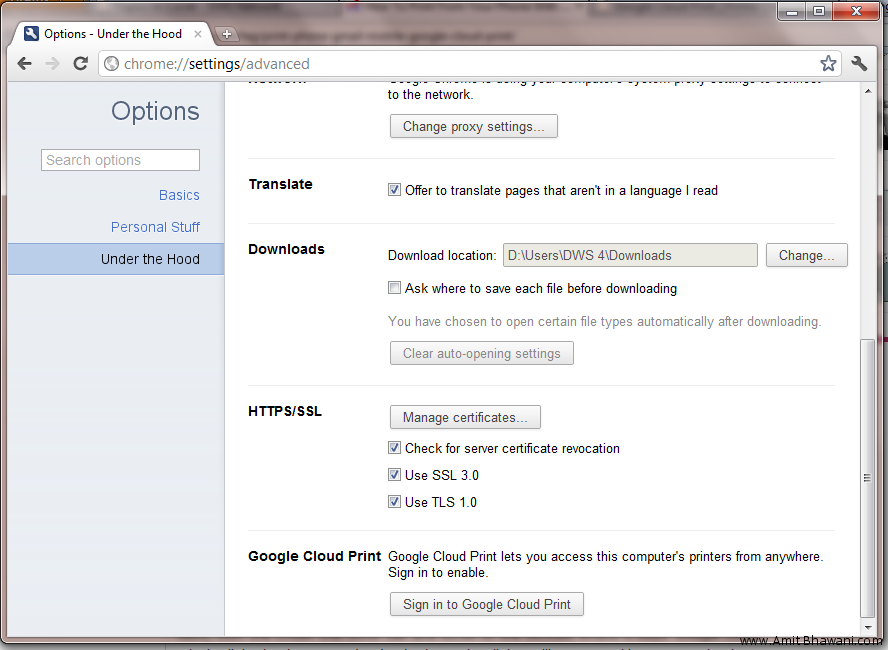
  1. Go to Google Chrome browser and go to its Settings > Options.Google Cloud Print
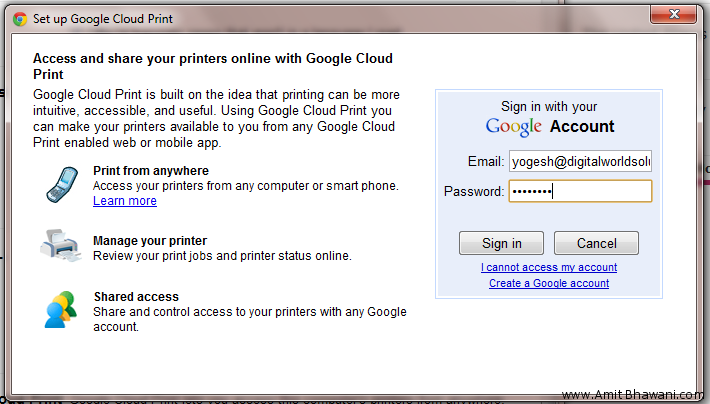
  2. Now Under the hood you will find the options of Sign in to Google Cloud Print. There is no registration because this uses Google Account for signing in into it. Click on that and soon a popup will ask you for the login into the account, which is thus confirmed by a popup soon here – Google Cloud Print
  3. Once your sign in is successful you will see a confirmation page which ask for a print a test page or else you can click on OK to continue.Google Cloud Print
  4. Now moving back to Under the Hood you should now see two new options instead of the previous, which are – Disable Google Cloud Print and Manage Print Settings. It’s easily understood that Disable Cloud Print is for disabling the option of Google Cloud Print since many of the users doesn’t need on their home PC as they have not much of printing work.Google Cloud Print
  5. Click on Manage Print Settings to manage or add printer to the Google Cloud Print. Under that you will find Print Jobs and Printers connected to the Google Cloud Print. If you desire to add a printer then there is an option to Add Printer.
How to Print to Google Cloud Print Printers through Mobile
You can print through varies applications that support Google Cloud Print and the steps for printing varies from application to application.
Basically on the Chrome notebooks, in Google Chrome browser, if you wanted to print you click on the wrech icon and select Print (you can also use keyboard shortcut CTRP + P button) to print the webpages.
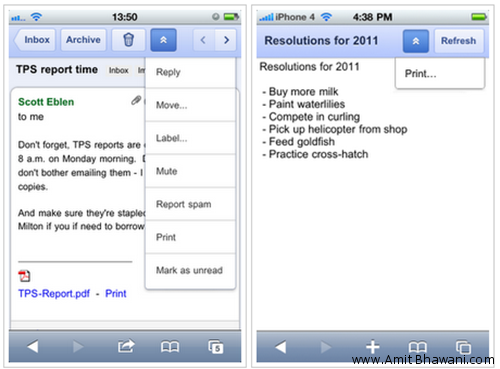
Its quite good news for smartphones holder that you can directly print straight from your mobile through Google Cloud. For Google Docs and GMail in your mobile you need to click on the menu present in the top right corner and then hit Print. You can also directly print from your GMail too. This features are right now available to the users who have Android 2.1 or higher devices and iOS 3+ version and devices which support HTML5.Google Mobile Cloud Print Mobile
As you see in the image emails can directly be printed and for attached documents or Google Documents you need to get further through options.

How to Secure Your Hotmail/Windows Live Account

Whenever you enter your important information such as your email address login details, bank login details or such other login credentials. Its very important for you to know if you are on safe connection or Not! If you are not on safe connection, the website address will start from HTTP:// and if you are on a secure connection  the website address will starts from HTTPS://. This additional "S" gives guarantee that you are on secure connection and your important information such as login details have no
interference of others. Now, the question is, How to get a secure connection for your Hotmail ?

How to Get a Secure Connection for Hotmail (HTTPS)

HTTPS (Hypertext Transfer Protocol Secure) connection shows that if site where you enter your login information uses SSL connection or Not. SSL protocol provides us the encrypted communication and secure network. Follow below given steps to use SSL connection for your HOTMAIL address.

  • Login in Your Windows Live Hotmail Account
  • Go to Your Inbox, then click on "options" from top right and then click on "more options" form the list.
  • There you will so many options, simply click on "Account details (password, aliases, time zone)"

  • Scroll down the new page and click on "Connect with HTTPS" from the list.

  • Now, select "Use HTTPS automatically" and click on save button.

Thats It, Now whenever you will login in your Windows Live Hotmail account, your connection will automatically be a secure connection and URL will always start with HTTPS://.

Install Mac OSX (iAtkos 07) on PC


If you like to be on Hackintosh 10.5.4, you can try and install the new iATKOS v4i. You can download it from the usual place where the “green thing” resides. The file is 2.64 Gb in size so expect to wait for a few hours if not a few days to download. The file is an image file so you need to burn it on a DVD drive prior to installing on a PC. I did manage to install and boot into OS X 10.5.4 without [...]
]

Now Play Song With Lyrics Automatically


Did you ever heard or see lyrics being played with Song or a sound track ? If Not then here is a software which makes you able to play lyrics of a song on Jet Audio, Windows Media Player, RealPlayer, Winamp, iTunes, Jukebox etc.

MiniLyrics is a small but useful utility application which works with most of media players smoothly and plays lyrics with Song or music sound track. With MiniLyrics, you can display lyrics of songs on inside media, full screen view or on Computer Desktop Screen.

How To Send a Complete Web Page via Email


There are two ways to send a webpage to someone. The most common and the most followed is to copy paste the webpage link in the email. The second is to send the entire web page via email, that is include it within the body of the email.
Which one do you think is more effective? My own thinking and experience says that a URL though short and sweet just does not catch the eye as a full webpage does. Call it a human habit; we put off clicking a link when we have to go through quite a few emails in our inbox. An entire webpage has a better chance of grabbing my eyeballs because a glance says whether the information is relevant to me or not.

Secrets of Anger Management Courses


Anger is a natural emotion. It is a part of everybody’s life and personality. It is displayed as a reaction to many different situations. When we get angry, our heart rate increases and muscles tense up. Anger can be very destructive at times and without proper control it can lead to many problems.

Block Websites on a PC Without Using any Software


Steps to block:

  1. Browse C:\WINDOWS\system32\drivers\etc
  2. Find the file named “HOSTS”
  3. Open it in notepad
  4. Under “127.0.0.1 localhost” Add 127.0.0.2 www.sitenameyouwantblocked.com , and that site will no longer be accessable.
  5. Done!

Hotkeys To Turn Off The CPU or Monitor


You may know that Windows can be configured to turn-off or stand-by CPU or Monitor after a certain time of inactivity. This is help to save the power used by an idle computer. There are also two Buttons on a keyboard Power and Sleep. Those buttons are also used for the same purpose i.e. to turn off the computer or standby it. As those two buttons are not available on Standard Keyboards or other too, so you show configure hotkeys to Shutdown or Stand-by you Computer or Monitor Screen.

Clear Firefox History and Temp Files on Shutdown Automatically


There’s a running joke in my family that my paranoia (as far as security is concerned) knows no bounds. On the computer, my passwords are at least 30 characters long, I try to surf on as many secure webpages (https) as I can, I keep everything in encrypted folders behind firewalls, and when I close my Firefox browser, all my personal browsing information is automatically dumped and deleted so no nefarious devil can get their hands on it. Yep, you can call me Captain Paranoia.

Meet The Author